Tasks
Task descriptions support Markdown, including paragraphs, headings, lists, links, emphasis, code, and tables.
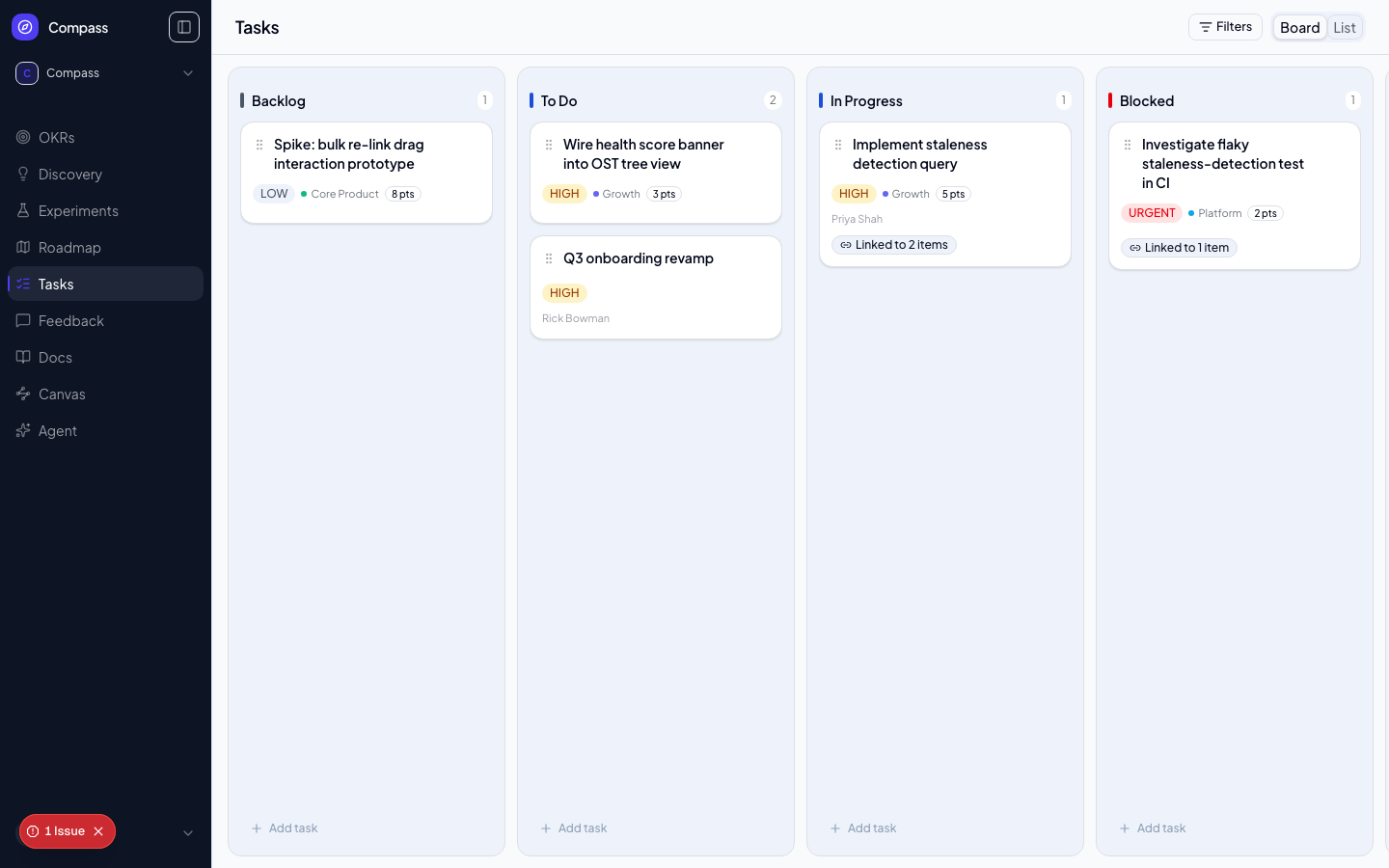
Tasks is Compass's standalone delivery/tracking entity. It's built to scale from a full engineering sprint board (replacing a Jira-style workflow) down to a lightweight list of high-priority initiatives a PM wants to keep an eye on — both use cases share the same status vocabulary and the same underlying entity, so there's nothing to migrate between them.
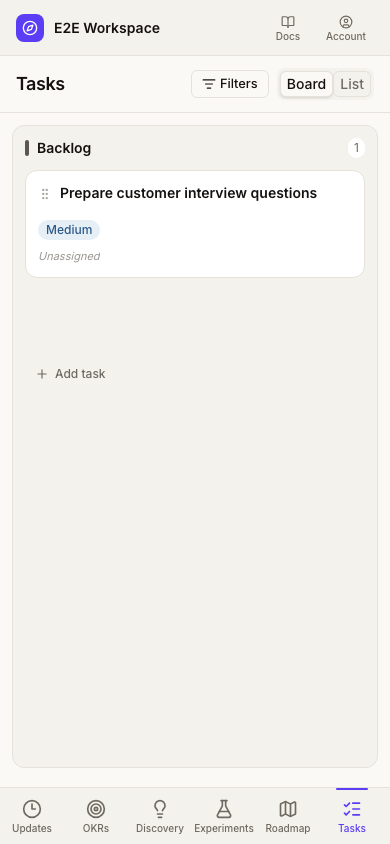
On mobile, each column fills the available board width with small side gutters. Swipe sideways to reach the next column.
📸 Screenshot: run
pnpm docs:screenshotswith aDOCS_SESSION_FILEto capture this image.
Status Vocabulary
Every task moves through: Backlog → To Do → In Progress → Blocked ⇄ In Review → Done, with Cancelled as a terminal escape hatch from any state.
Blocked is its own column, not a flag layered on top of another status — dragging a card into Blocked is how a task gets blocked, and dragging it back out resumes whatever stage makes sense. This keeps the board a single-axis kanban that matches the mental model of tools like Jira, rather than asking you to track two independent pieces of state.
Cancelled tasks are collapsed behind a Show cancelled toggle above the board so a graveyard of abandoned work doesn't clutter the columns you're actively using.
Board and List Views
Toggle between Board and List at the top of the Tasks page — ?view=list in the URL takes you straight there.
- Board — the familiar column-per-status kanban. Drag a card to a new column to change its status; drag within a column to reorder. That priority order is persisted for the whole column, including when you reorder a filtered view, and is visible to every workspace member.
- List — a flat, filterable table with one row per task, indented by hierarchy depth. This is the better view for the "PM tracking a handful of initiatives" use case, where a full kanban is more structure than the work needs.
Both views read the same underlying data — there's no separate "lite" data model for the list view.
On touch screens, swipe over card content to scroll vertically or move horizontally between board columns. Use the dotted drag handle to move a card instead. On desktop, column headers stay visible while their cards scroll.
Creating and Assigning Tasks
Click Add task at the bottom of any column (or Add subtask on a task's detail page) to create one. A task has:
- Title and Description
- Priority — Urgent / High / Medium / Low
- Assignee — one Compass workspace member or registered agent, or unassigned. Agents must be enabled for this workspace; see Agents. Assignment does not start execution.
- Owner — a freeform name, for PM-tracked initiatives whose responsible party isn't a Compass user (an external stakeholder, an exec, etc.). Either or both of Assignee and Owner may be set on the same task.
- Squad — the owning team, same convention as Objectives, Opportunities, and Roadmap Items
- Story points and Due date — optional estimation/scheduling fields
- Iteration — a freeform sprint label (e.g. "Sprint 24") for teams that want lightweight grouping without a full Sprint entity
Task details
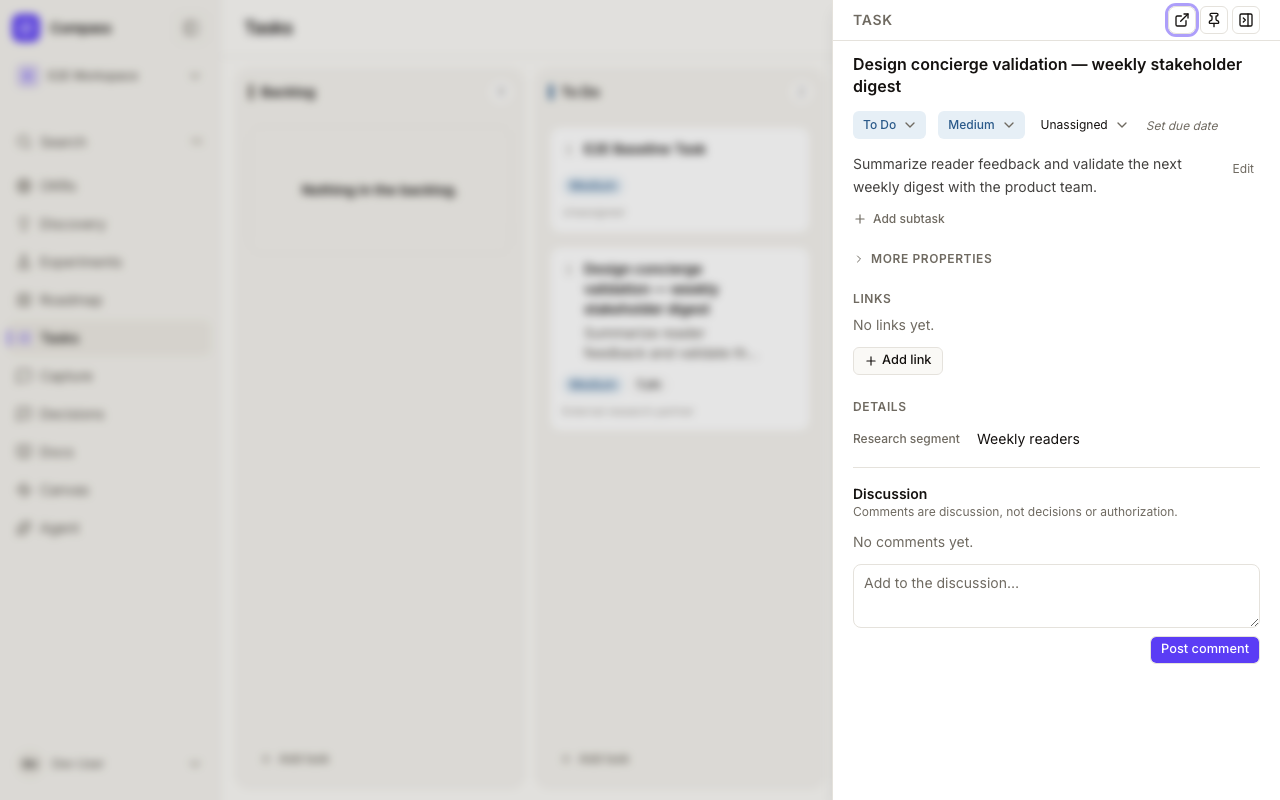
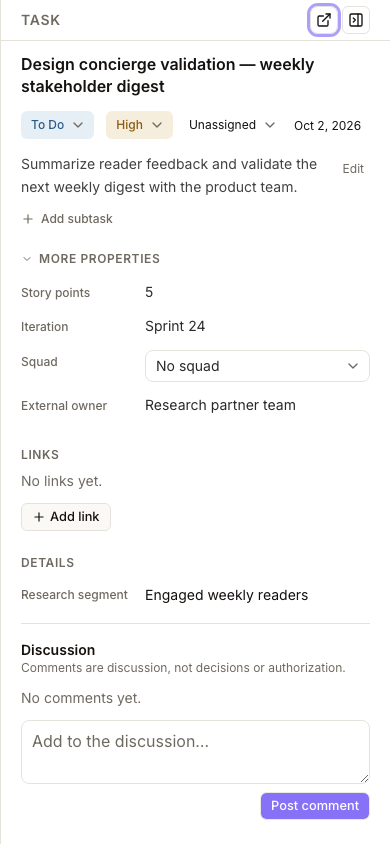
Task details put the editable title first, followed by a compact row for status, priority, assignee, and due date. The description and subtasks follow immediately. Use the Open full page icon in the panel toolbar to open the same detail view on its own page. On narrow screens, the summary controls wrap to fit.
Expand More properties below subtasks to edit story points, iteration, squad, or an external owner. Properties and custom fields use simple label/value rows; the panel remembers whether you left More properties open. A task with no children shows only Add subtask until you create its first subtask.
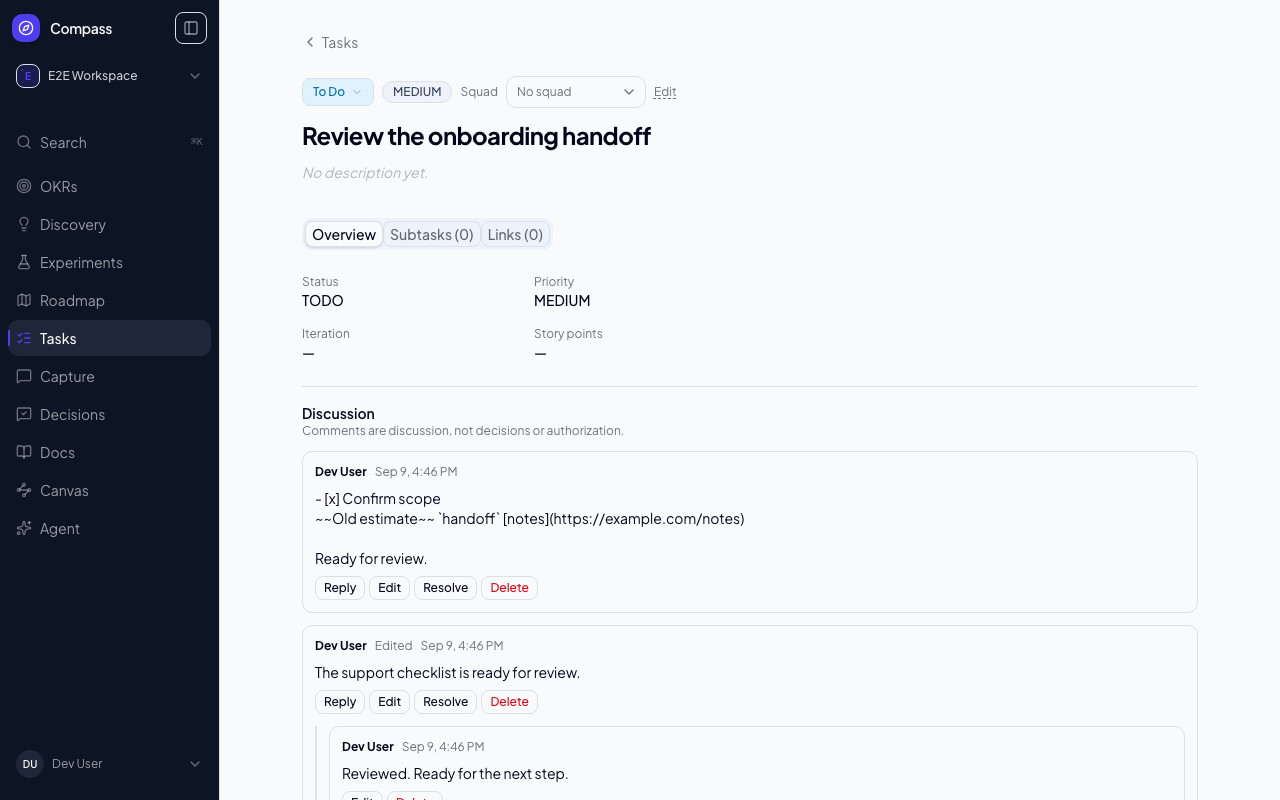
Discussion
Open a task to find Discussion at the bottom of its detail panel — the same panel used for every other Compass item, opened via a click from the board or list, or as a full page at the task's own URL. Existing comments, including comments added through the API, appear here.
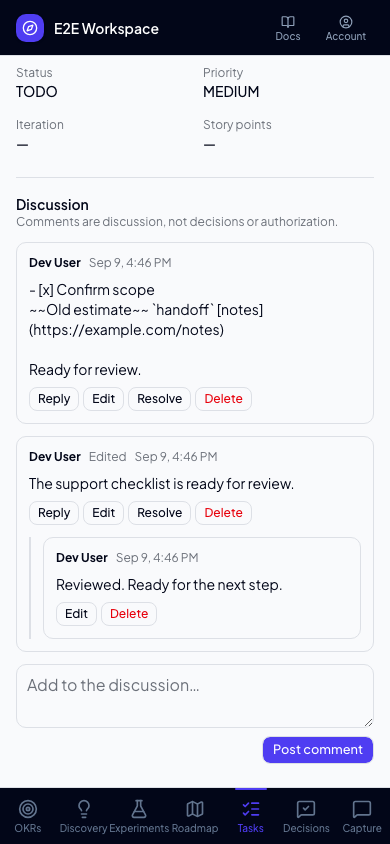
Add comments and replies, edit or delete your own comments, and resolve or reopen threads using the same shared Discussion available on other Compass items. Workspace and organization administrators can moderate discussions. Subtasks have their own discussions on their detail pages.
Comment text preserves line breaks and Markdown source; Markdown syntax is shown as text rather than rendered formatting. Comments record conversation and do not authorize work or change task status.
On mobile, scroll down to the comment composer below the thread:
Epics and Subtasks
The assignee picker groups People and Agents. If an existing assignee loses access or is suspended, the identity remains visible as unavailable until you clear or replace it. Assignee filters support both kinds of identity.
Tasks can nest: a task with no parent and its own children behaves as an Epic, and a task with a parent is a Subtask. There's no separate "Epic" type to set — the label is just how the UI describes the shape of the parentTaskId tree, so a task's role can never drift out of sync with its actual position in the hierarchy.
Manage a task's children from the Subtasks section of its detail panel.
Linking to the Rest of Compass
A task can link to any number of other Compass objects — Opportunities, Solutions, Roadmap Items, Objectives, Key Results, Docs, Experiments, Decisions, and Feedback Items. Links are many-to-many with no cap: one task can be linked to both a Solution and a Doc, and one Opportunity can have many tasks pointing at it. This is how delivery work stays traceable back to the discovery and planning context that motivated it.
Linking works from either side:
- From the task — the Links section of its detail panel links to (or unlinks from) any of those object types.
- From the object — an Opportunity, Solution, Experiment, Objective, Key Result, Feedback Item, or Doc's own detail panel has a Delivery tasks section where you can create a new task inline (title, optional assignee) or link an existing unlinked task, without leaving the panel or navigating to the Tasks board first. A Roadmap Item's sidebar had this first; it now works identically everywhere else a task can point.
When you add a link from a task, one search field looks across every supported item type in the workspace. Use the type chips to narrow a broad result set, then select a result to review its title and linking context before confirming. The picker supports the arrow keys to move through results and Enter to select.
A task's owning Squad is not part of this link system — it's a first-class field on the task itself (same as Opportunities and Roadmap Items), so squad-based board filtering stays a simple, exact match.
Filtering
Use Filters at the top of the page to filter the board or list by Squad, Assignee, or Priority. The facets compose, so you can filter to a specific squad's Urgent tasks assigned to one person, and Clear all removes every active filter at once. Filtering by squad is strict (a task's own squadId, not anything it's linked to).
Custom Fields
Like other Compass entities, Tasks support workspace-defined custom fields (Settings → Custom Fields → Task). Add fields like "Component" or "T-shirt size" without a schema change; they render in the Details section of a task's detail panel.