Feedback Portal
The Feedback Portal gives your customers a public page to submit feature requests and bug reports, and to vote on what matters most to them. It connects directly to your internal Discovery workflow so feedback automatically informs opportunity prioritisation.
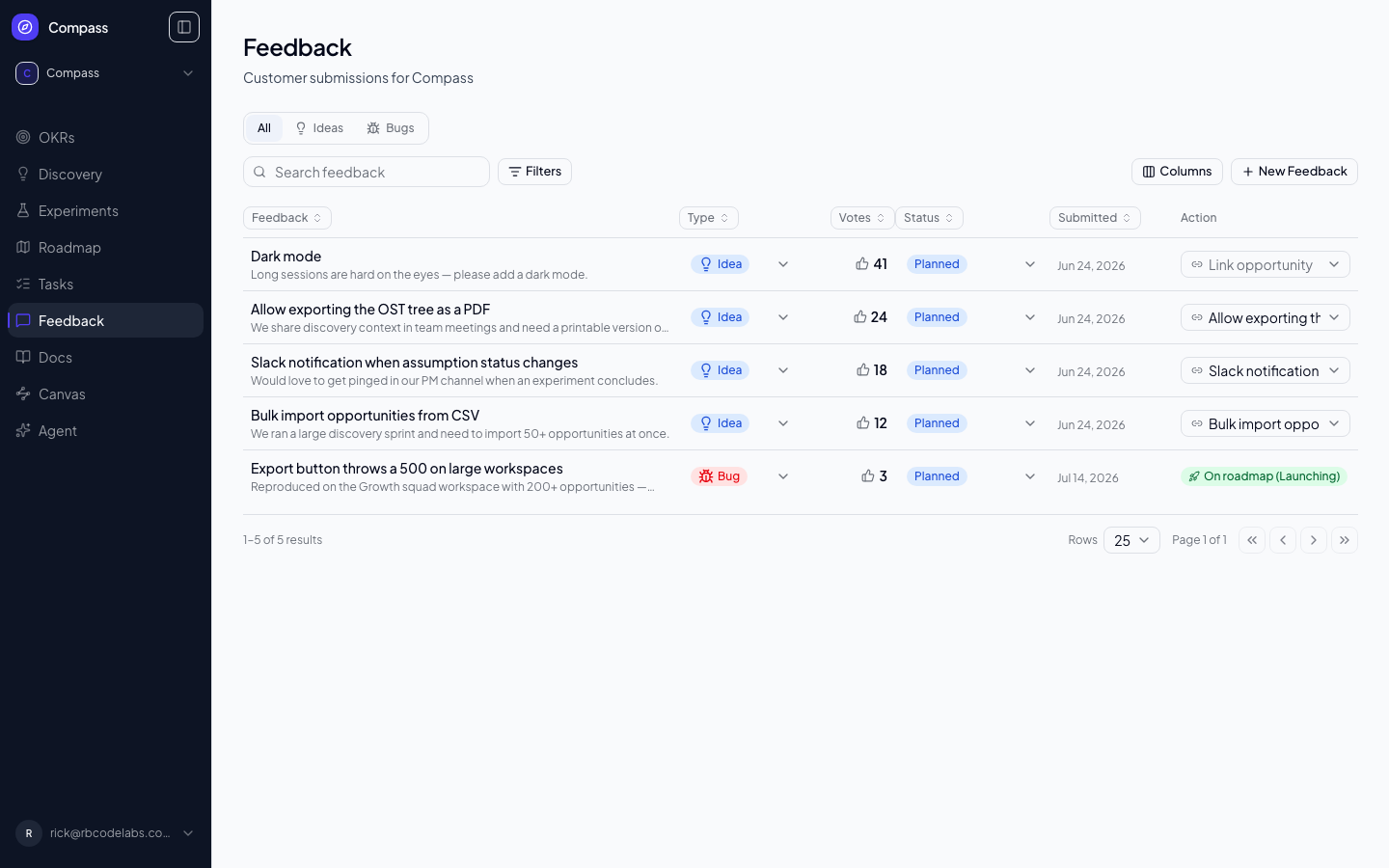
📸 Screenshot: run
pnpm docs:screenshotswith aDOCS_SESSION_FILEto capture this image.
Enabling the Portal
The feedback portal is off by default. To enable it, go to Settings → Portal in your workspace. Toggle on:
- Public Feedback Portal — Enables the public submission and voting page
- Public Roadmap — Enables the public roadmap view showing your Now / Next / Later items
- Require an account to submit/vote — Once feedback or roadmap is enabled, an optional third toggle appears that requires visitors to verify their email via a magic link before they can submit feedback or vote
- SSO Identify — Once feedback or roadmap is enabled, an optional fourth toggle lets visitors arrive pre-verified from your own product instead of (or alongside) the magic-link flow — see below
Once enabled, your portal URLs are:
- Feedback:
/portal/[org]/[workspace]/feedback - Public Roadmap:
/portal/[org]/[workspace]/roadmap - Home:
/portal/[org]/[workspace]— a widget board you design yourself (see Portal home)
Share these links in your product, in onboarding emails, or in your documentation. By default, no login is required for visitors to submit or vote.
Requiring Portal Accounts (Optional)
If you turn on Require an account to submit/vote, first-time visitors are asked to enter their email address and click Send magic link. Clicking the link they receive signs them in for that portal — their verified email becomes the identity attached to their feedback and votes, replacing the free-text email field. Once signed in, visitors see "Signed in as <email>" in the portal header with a Sign out option.
Portal accounts are completely separate from your team's Compass logins — a portal account can never access your internal workspace, OKRs, discovery data, or settings, regardless of what email address is used. There is no path from a portal account to a team member account; if a portal user is later invited to your workspace as a real team member, that invite creates an unrelated login with no connection to their prior portal activity.
SSO Identify (Alternative to Magic-Link)
If your customers are already logged into your own product, making them re-verify their email via a magic link is unnecessary friction. SSO Identify lets your backend vouch for a visitor's identity directly:
- In Settings → Portal, toggle on SSO Identify (only visible once feedback or roadmap is public), then click Generate secret. The raw shared secret is shown exactly once — copy it into your backend's config immediately. Compass stores it encrypted and can never show it to you again; if you lose it, click Rotate secret to generate a new one (this immediately invalidates the old one).
- From your own backend, when a signed-in user clicks through to your Compass portal, mint a short-lived JSON Web Token (HS256, ≤5 minutes old) using that shared secret, with the payload
{ email, name?, iat, exp }. - Send the user to
/api/portal/[org]/[workspace]/sso?token=<jwt>&returnTo=<path>. Compass verifies the token, creates (or reuses) the matching portal account, signs the visitor in, and redirects toreturnTo(must be a path under/portal/...) — or shows a simple "Signed in" confirmation ifreturnTois omitted.
Any token that's unsigned, expired, older than 5 minutes, or missing a valid email claim is rejected. SSO Identify and the magic-link flow both produce the same kind of portal account and can be enabled together — visitors without an SSO link still fall back to email verification.
v1 limitation: rotating the secret has no grace period — the old secret stops working the instant you generate a new one. Coordinate the rotation with a backend deploy so there's no window where your backend is signing with a secret Compass no longer accepts.
How Visitors Submit Feedback
Visitors to your feedback portal see a list of existing submissions sorted by vote count. They can:
- Submit new feedback by clicking Share Feedback — they provide a title and optional description
- Vote on existing feedback by clicking the upvote button on any submission. Each visitor can vote once per item (tracked by IP and session, or by portal account if account requirement is enabled)
Submissions automatically appear in your internal feedback triage view immediately.
Attaching Screenshots & Files
When submitting feedback, visitors can attach files to help illustrate the issue or idea — a screenshot of a bug, a PDF, or a CSV of sample data. Supported file types are images (PNG, JPEG, GIF, WEBP), PDFs, and plain text/CSV files. Each file can be up to 10MB, with a maximum of 5 attachments per submission.
Attachments upload as soon as they're selected, showing a thumbnail (for images) or a file chip (for everything else) with a remove option before the submission is sent. Once submitted, attachments are visible both on the public portal listing and in the internal triage board, so your team can see exactly what the visitor saw.
Submitting Feedback From Inside Compass
You don't have to wait for a customer submission to add something to the queue — your own team can log feedback directly, without going through the public portal:
- On a workspace's Feedback board, click New Feedback (also available from the empty state) to log an idea or bug against that workspace. It shows up in the board immediately, scoped just like a portal submission. See the feedback composer below.
- From anywhere in Compass — any org, any workspace — open the account menu under your avatar (bottom of the sidebar on desktop, or Account in the mobile header) and choose Send Feedback about Compass to report a bug or suggest an improvement about Compass itself. This always lands in the Compass team's own workspace, regardless of which org or workspace you're currently working in, so it reaches the team no matter where you are.
Both flows attach your name and email automatically from your Compass login, so the team knows who to follow up with.
The feedback composer
New Feedback opens a composer in the right-hand panel — the same place a feedback item opens when you click it. On a desktop-width window the composer docks beside the board instead of covering it, so you can keep scrolling, searching and filtering existing feedback while you write (handy for checking for a duplicate first). On a phone or narrow window it opens as a full-width sheet.
- Type — choose Idea (suggest an improvement) or Bug (something isn't working). Use the arrow keys to switch between them.
- Title — a short, scannable summary. The cursor starts here.
- Details — a full Markdown editor with a formatting toolbar (headings, lists, links, code, tables), or switch to Markdown to type the source directly. The prompt changes with the type. Insert bug template adds Steps to reproduce / Expected result / Actual result headings in one click; ideas get a Problem / Proposed idea / Who benefits outline.
- Attachments — drop files anywhere on the composer, paste a screenshot straight from your clipboard (into the title or the details), or click to browse. The same limits as the portal apply: PNG, JPEG, GIF, WebP, PDF, TXT or CSV, up to 10MB each, at most 5. Files upload immediately, with a progress bar per file; a file that fails shows the reason and a retry button, and you can remove any file before submitting.
- Submit with the button or ⌘/Ctrl + Enter. The feedback and all of its attachments are saved together — if anything can't be saved, nothing is created and the problem is pointed out so you can fix it and resubmit.
After you submit, the new item appears in the board and the panel switches to showing it, with your Markdown rendered and attachments displayed, so you can set its status or link it to an opportunity straight away. Click New Feedback again to log another.
Your draft is safe. Everything you type is saved on this device as you go. Closing the panel (the close button or Esc), reloading the page or navigating away keeps the draft, and it's restored the next time you open the composer in that workspace. Cancel discards it, after asking you to confirm.
Triaging Feedback Internally
Inside Compass, the Feedback section shows all submitted feedback across your workspace as a sortable, filterable table. Each row shows:
- The title, description, any attachments, and who submitted it
- Type — Idea or Bug
- Votes — how many portal visitors upvoted it
- Status — Open, Under review, Planned, In progress, Completed or Declined
- Submitted — the date it arrived
- Action — Promote to roadmap for bugs, or Link opportunity for ideas
Linking feedback to opportunities is how you turn raw customer voice into prioritised discovery work. An opportunity with ten linked feedback items has much stronger justification for investment than one based on a single interview.
Sorting
Click any column header — Feedback, Type, Votes, Status or Submitted — to sort by it. Clicking the same header again flips between ascending and descending. Each column starts in the direction that's usually most useful: Votes and Submitted sort highest/newest first, the text columns sort A→Z.
Sorting runs on the server against the whole result set, not just the rows currently on screen, so "most-voted first" really does mean most-voted across every page.
By default, feedback is ordered by vote count (highest first), then by newest.
Filtering and searching
Three controls narrow the list, and they combine:
- All / Ideas / Bugs — the quickest way to split the queue by type
- Filters — select one or more Statuses (all are included by default) and optionally one Type. Clear all restores the full, unfiltered view
- Search — free text matched against both the title and the description
Like sorting, filtering happens on the server, so the result count and the page numbers always reflect the full filtered set.
Paging through results
Feedback is paged, 25 rows at a time by default. The footer shows which rows you're looking at ("1–25 of 63 results"), lets you jump to the first, previous, next or last page, and lets you switch the page size to 50 or 100.
Changing a filter, the search text, the sort or the page size always returns you to page 1 — page 3 of an old filter doesn't mean anything under a new one.
Sharing a filtered view
Every sort, filter, search term and page lives in the URL. That means the address bar is a shareable link: narrow the board down to open bugs sorted by votes, copy the URL, and whoever you send it to sees exactly the same view. It also means the browser's back button steps back through your filters, and bookmarking a view you check often works as expected.
Showing and hiding columns
Use the Columns menu to hide columns you don't care about, or to reorder them (you can also drag a column header). The Action column is always present and always last.
Column choices are remembered in your browser, per grid — they're a personal preference, not part of the shareable URL, so hiding a column never changes what a link you share looks like for someone else. Reset columns puts everything back.
Editing a row in place
Type and Status can be changed directly in the table without opening anything — pick a new value from the cell and it saves immediately.
If a change means the row no longer matches your active filters (marking an item Completed while you're filtered to Open, say), the row deliberately stays where it is and a note appears above the table: "1 item no longer matches your filters." Click Refresh when you're ready to reconcile with the server. Rows aren't yanked out from under you mid-triage, and the counts and page offsets stay trustworthy.
If a change fails to save, the cell reverts to its previous value and the reason appears above the table.
On a phone
Below tablet width the table becomes a stack of cards — one per item, with the title, description, attachments, type, status, date and the promote/link action. Tap a title to open the full detail panel, where Type and Status can be edited.
Keeping the Portal Fresh
The public feedback portal shows all submitted items, so quality matters. Internal team members can delete spam or off-topic submissions. For legitimate submissions that have been addressed via a shipped feature, you can mark them as closed — they'll still appear in the history but are visually distinguished from open items.