Branding
Every workspace can customize its accent color, typeface, and logo from Settings → Branding. The customization applies everywhere the workspace appears — the internal app (sidebar, buttons, badges, links) and its public feedback/roadmap portal — so a workspace's identity stays consistent whether someone is signed in or visiting anonymously.
Workspaces that haven't set any branding render exactly as they always have: the default indigo accent and Jakarta Sans typeface, unchanged.
Light, Dark, or System Appearance
Open Settings → Appearance to choose Light, Dark, or System. System is the default and follows your operating system's appearance, including changes while Compass is open. Light or Dark keeps your chosen appearance regardless of the system setting.
Your choice is saved in this browser on this device and applies across signed-in workspaces. It does not change anyone else's preference. Workspace accent colors and fonts still apply in either appearance. Public marketing, User Guide, and customer portal pages keep their own appearance.
On phones, use the mobile header and bottom navigation to move around your workspace. Appearance controls remain available in Settings.
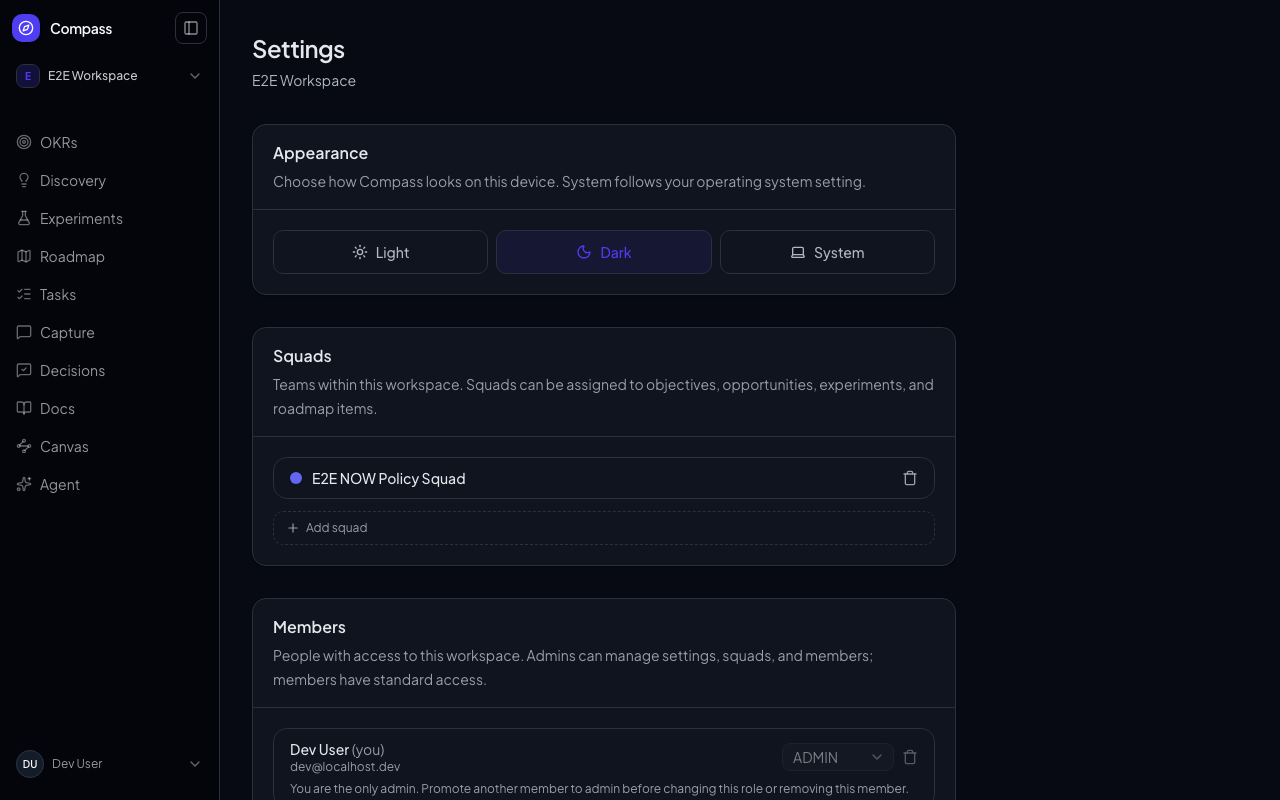
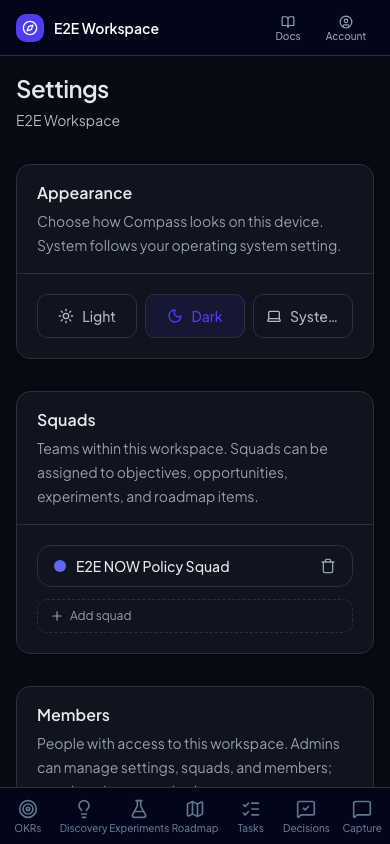
Workspace Branding Options
- Accent color — replaces the app's primary indigo across buttons, active navigation states, badges, links, and the logo mark, in both the authenticated app and the public portal.
- Font — replaces the app's default typeface (Plus Jakarta Sans) everywhere body text renders.
- Logo — an uploaded image, stored for future use alongside the color and font settings.
Color
Choose Preset or Custom.
Presets are a curated set of six palettes (Default Indigo, Emerald, Rose, Amber, Sky Blue, Slate), each paired with a foreground color pre-tuned for contrast — no extra configuration needed.
Custom lets you enter any 6-digit hex color (e.g. #4f3df2) via a text field or a native color picker. For custom colors, Compass computes a readable foreground (near-black or white) automatically using a relative-luminance contrast check, so text on top of your accent color stays legible regardless of how light or dark it is.
If both a preset and a custom hex are present, custom always wins — switching back to Preset mode clears the custom hex.
Font
Choose Preset or Custom.
Presets are five typefaces (Jakarta Sans, Inter, Poppins, Space Grotesk, Source Serif 4) already bundled and optimized via next/font — they load with the rest of the app's fonts and never cause a layout shift or flash.
Custom lets you type any font name, loaded on demand from Google Fonts by name. Two things to know about custom fonts:
- Unmatched names fail silently. If the name doesn't match a real Google Font, the browser falls back to the default typeface — there's no error shown to you or your workspace's visitors.
- Custom fonts load slightly slower than presets and can cause a brief flash of unstyled text (FOUC) on first paint, since they're fetched from Google Fonts at request time rather than bundled with the app. Preset fonts don't have this tradeoff.
Logo
Upload an image (any common format, up to 10MB) from the Branding panel. Use Replace logo to swap it or Remove logo to clear it — removing a logo only clears the reference to it, it doesn't delete the previously uploaded file.
Where Branding Applies
Branding is powered by a single source of truth per workspace, rendered independently in two places:
- The authenticated app — every page under a workspace's URL (
/{org}/{workspace}/...), including the sidebar logo mark, active navigation highlighting, buttons, and badges. - The public portal — the unauthenticated feedback and roadmap pages at
/portal/{org}/{workspace}/..., for visitors who've never signed in.
Both surfaces read the same paletteId / primaryHex / fontPresetId / fontFamily / logoUrl fields on the workspace, so a change made in Settings shows up in both places as soon as you save — no separate portal configuration required.